Mac OSx Users - please go here
Linux Users - please look here
Contents
- 1 To install Velomap maps on Windows just run the .exe download
- 2 Additional Explanation for Maps with separate Downloads (contourlines - or mapfiles for huge maps like Europe continent map)
- 3 Select Map in Mapsource/Basecamp:
- 4 Update the VeloMap maps on Windows:
- 5 Change the Typfile / Layout of the VeloMaps:
- 6 Possible Problems under Vista or 7:
- 7 All my other maps dissapeared on my GPS:
- 8 Installation directly to PNA without Garmin Mapsource:
- 9 Changing / Moving the folder in which you have installed the maps
To install Velomap maps on Windows just run the .exe download
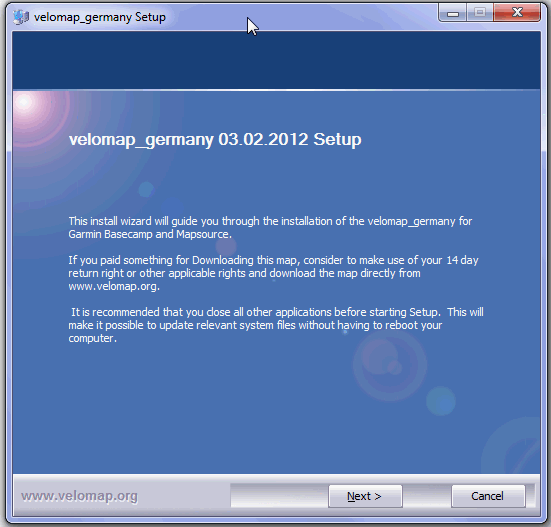
The first screen will popup several seconds after you double-click on the downloaded map. As there is an integrity check (checking that the download was fine) it may take some time (the bigger the map the longer) until this pops up.
Click on next to proceed.
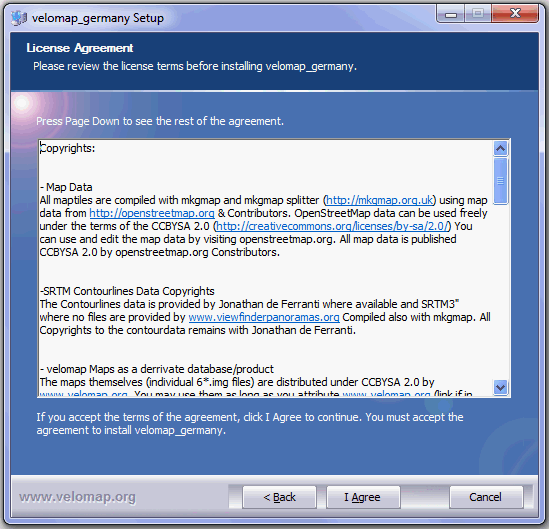
On the second screen please reed through the license agreement // Copyrights and if you accept the terms of it, click the checkbox and then proceed.
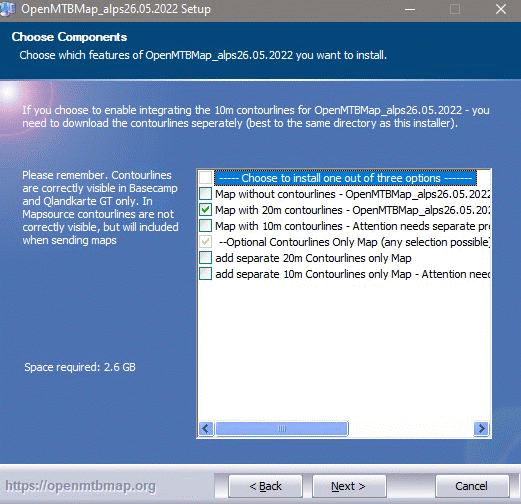
The next screen will be shown for all maps for which contourlines are integrated into the map.
The first button installs the maps without contourlines.
The second button installs the maps with 20m contourlines (notice for some maps this means you need to download the contourlines separately - the installer will later ask for them)
The third button installs the maps with 10m contourlines.(notice for some maps this means you need to download the contourlines separately - the installer will later ask for them)
--- You can only chose one out of the top three options.
Notice: the contourlines are only shown in Garmin Basecamp or Qlandkarte GT (as well as on all Garmin GPS devices) - but not correctly in Garmin Mapsource. If you don't activate it - then the map will not include contourlines. This could be benefitial in very flat countries like the Netherlands, or if you feel the contourlines disturb you when using the map.
Below this - you have the option to add separate contourlines only maps for installation. This can be useful if you want to send the contourlines separately - e.g. if you install OpenMTMap and VeloMap for the same country to your GPS device. Then you can send both maps without contourlines - and separately the contourlines once alone. As OpeMTBMap and VeloMap have identical contourlines.
For the VeloMap it is very similar However:
The top checkbox installs the maps without contourlines and without buildings.
The second option with 20m contourlines - but without buildings.
The third option with 20m contourlines and with buildings.
The forth option with 10m contourlines and with buildings
-------
Additionally there are buildings or contourlines only map layers if you want. For some maps again contourlines are a separate download (same as for OpenMTMaps)

On the forth Screen you have to choose the layout. There are 2 different layouts available. 1 for destkop use, and 1 for GPS use. Often new users of the VeloMap will ask which one they should choose. As there is not that much space to give detailed explications in the installer, I will explain it a bit more detailed:
- Let's start with the last one in the list that is selected by default: Layout for Mapsource, Qlandkarte GT or PC/desktop screens. This is a low contrast layout suitable for desktop/PC use (800x600 pixels and up). It does not provide enough contrast and clarity on your GPS device however. If you choose it you should change it before sending the maps to the GPS device. This can be easily done by running "change_layout_for_openmtbmap_country.exe" (after installation there will be a link to it in your start menu).
- Velo layout - this is optimized for etrex devices or edge 705. It is optimized for non touchscreen Garmin GPS.
You can change the layout at any time (e.g. before sending the maps to the GPS device). This can be easily done by running "change_layout_for_velomap_country.exe" (after installation there will be a link to it in your start menu).
On the fifth screen you can choose a folder into which you can install the maps. Please note - do not change the folder afterwards by hand. If you want to change it, then best first uninstall the map, and then reinstall to another folder (simple reinstallation is also okay, but you will need to clean up the old folder by hand).
That's it, simply click on install and once it's finished you can see the map in Garmin Basecamp or Garmin Mapsource.
There will also be a link to quickly create a gmapsupp.img file for your GPS in your start menu (as well as a link to change the layout and uninstall the maps again).
Additional Explanation for Maps with separate Downloads (contourlines - or mapfiles for huge maps like Europe continent map)
Some maps, especially the continent maps, or all other maps where the contourlines are very big in comparison to the size of the map, have the contourlines integrated, but you need to download them separately.
The installer will ask you to provide them! (it's easiest if you simply download all files into the same folder!). Screenshots are from Openmtbmap Europe installation - but it's identical for Velomaps (just all filed named with velo instead of mtb in the beginning of the name)
Make sure all parts are actually fully downloaded (in the screenshot below - the needed europe_contours is still downloading - that's why you see the europe_contours.7z.part.
For maps with separate contourlines - make sure to tick the option to install them. It is not activated by default (on first installation).
The installer will ask you to open the separately downloaded file(s). You can see the message "Please open mtbeurope.7z" - so we click on mtbeurope.7z - then click on open at the bottom.
Then just wait until the installer reaches 100%. Attention for maps with 2 separately downloaded additional files (currently Europe and Asia). You will need to select the second file after the first one is installed. Separate contourlines only need to be unpacked once however. On map updates you do not need to download them again, nor do you need to provide them to the installer again. The contourlines integration option will automatically be activated if contourlines were integrated before the update!
Select Map in Mapsource/Basecamp:
Once installed - you have to select which map is shown in Mapsource/Basecamp. There is a drop-down menu in the top left as soon as you have installed 2 different maps. The menu is placed to the left of the "+" and "-" buttons which are used to zoom in/out. It is only shown if more than one map is installed.
This is how it looks in Mapsource 6.16.3
and this is how it looks in Basecamp 3.3.1:
Update the VeloMap maps on Windows:
Simply Run a newly downloaded .exe, it will overwrite the old maps and select by default the old installation folder. If you want to install the maps to another folder, you can do so. (afterwards, you can then safely remove the old folder).
Change the Typfile / Layout of the VeloMaps:
Simply run change_layout_velomap_country.exe. This will be found in the installation folder after the maps are installed. There is also a link to it from the Start Menu.
Simply click on next.
Choose the layout you want to see now and click on install - for a more detailled overview of the different layouts read through the installation instructions on the top of this page:
Possible Problems under Vista or 7:
I have heard that Windows Defender may cause Problems, the same might be true for UAC. So in case the installation does not run clean, deactive both temporarily.
Problems: Mapsource doesn't start after installing the maps. This usually only happens if you move the folder into which you installed the maps. You can check with Mapset Toolkit from here: http://cypherman1.googlepages.com/home and analyse what went wrong and/or delete any entry related to Mapsource from the registry.
All my other maps dissapeared on my GPS:
Notice that when you send maps to your device they are usually put into gmapsupp.img. So if you don't want to loose your old maps make a backup of gmapsupp.img and the use gmaptool http://gmaptool.eu/en/content/gmaptool to add the maps to your old gmapsupp.img. Or just as usual send all maps together from Mapsource to your unit. This is also true for using Sendmap.
Installation directly to PNA without Garmin Mapsource:
Simply run create_gmapsupp_img_with_mkgmap.bat then copy the gmapsupp.img to your GPS into the /garmin folder (gmapsupp.img MUST NOT BE RENAMED on very old Garmin GPS devices (2009 or older)). You will need to install Java JDK for this to work.
Changing / Moving the folder in which you have installed the maps
Attention, never change the folder from which you run the install*.bat. If you do this, then Mapsource will not start. Also if you delete the folder or the maps inside.
If you face this situation, or want to change the folder uninstall the maps, and then reinstall the maps.


Leave a Reply
You must be logged in to post a comment.