Sprache

email feed

Recent Comments

Install maps with Mapsettoolkit

This topic just for reference. Please follow the tuturial here: http://www.velomap.org/tutorials/install/


Sometimes the map will not install correctly, then you could follow this guide. (Note in case of problems first read the FAQ).

1. Download and Install Mapsettoolkit 1.77beta or later: http://cypherman1.googlepages.com/home

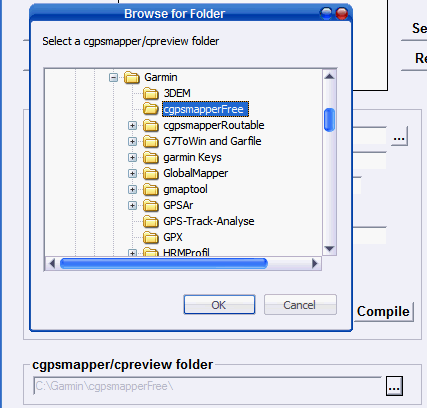
2. Download and Install cgpsmapper free (note maptk does not work anymore) http://cgpsmapper.com/


4. Install the maps:

a) "Select IMG" – select all map images (.img): (choose the folder you extracted the maps to). Then click on "Select All" and on the right side click "Add". Now the mapnames should show up on the right and lift window select_img
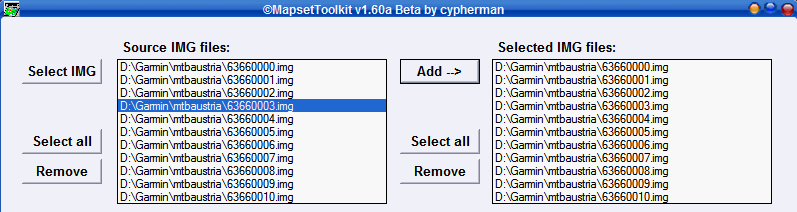
b) "Select mapset directory" (this should be the directory to which you extracted the maps, but you can choose any directory).

c) "Mapset Name" – give the mapset a name – this name will show in Mapsource to select the map i.e. openmtbmap_at

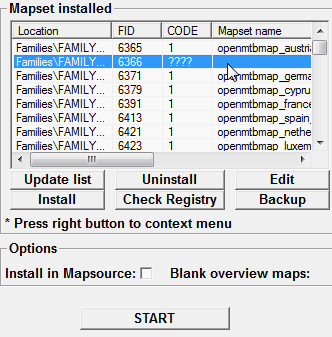
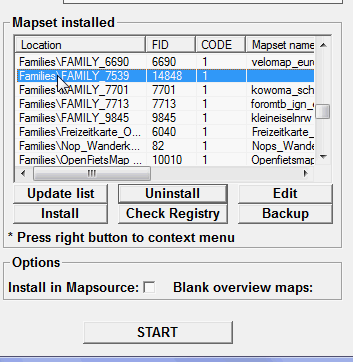
d) "Family ID" – set any number between 100 and 9999. It should not be used already (check looking through the "FID" field on the right of the main window) – i.e. 6366

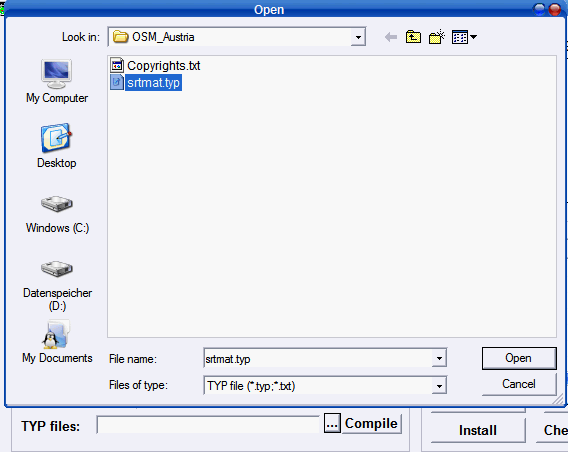
e) Select .TYP file.

select-typfile


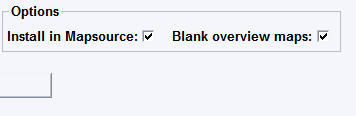
f) Tick option "Install in mapsource" (blank overview map does not exist anymore)

select_options


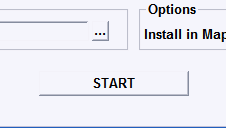
g) Controll Everything – then Click on "Start"

select_start

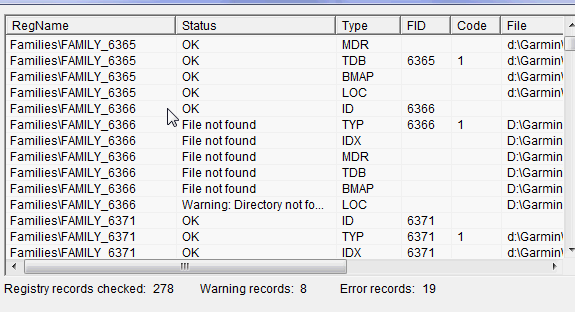
Here is the full view before clicking on start. Note there might be a warning shown, or error, but using cgpsmapper 097 it should nevertheless install correctly.
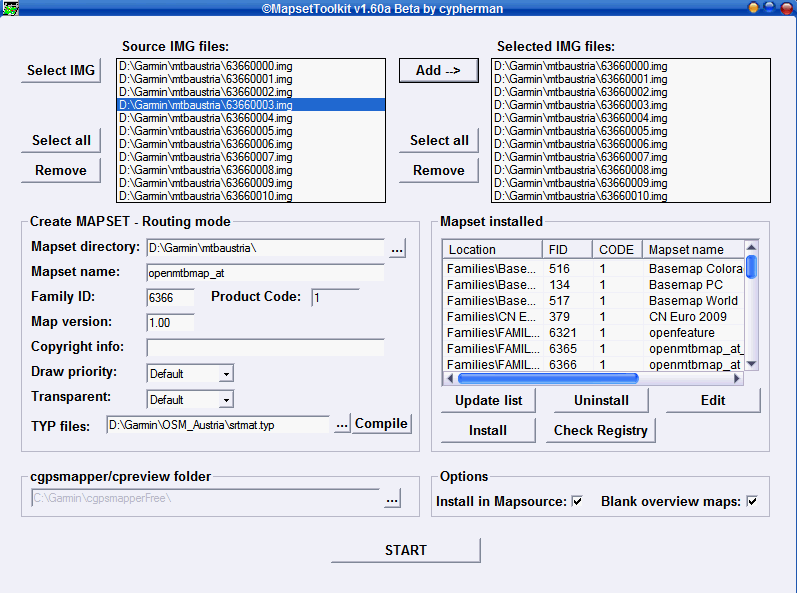
controll


Additional notes for SRTM Contourlines Installation:

I recommend to keep to seperate folders. One for the standard openmtbmap_austria installation, and a second one for the srtm files (plus the current openmtbmap_austria tiles).  So unzip the srtm files to any folder you like, copy (don't move) the openmtbmap_austria map tiles (all files ending with ".img" and having a 8 digit filename (i.e. 63660001.img, but not mapset00.img!) also in that folder.


Also copy the mtbat.TYP file into the folder. However you have to rename it, so there is no conflict in your GPS (Mapsource will tolerate you not renaming it – but the maps may display wrong) be carefull, maximum 8 characters are allowed. I named it srtmat.TYP Then follow the above guide. You will have to set a mapID – I would recommend using 6365 if it is not yet used (openmtbmap_italy uses 6367), but you may use any other number from 100-9999. Don't use 6366 as this the number the openmtbmap_austria uses.


After clikcing on "START" you will get a notice saying that the FID and PID of the .TYP File are wrong and you will be asked if it should be changed. Click Yes on that question. Then you have can send the maps either with or without contourlines to your GPS (or send both versions, and then upon use enable the one you want using the map setup window of your GPS.


Please Note: the *.img files containing the contourlines must be named higher than the maps containing the background polygon. Otherwise the will not show in Mapsource if you include them into the same .tdb. This was wrong in the SRTM Contourlines offered for Austria (update available as of 10.08.2009). Simply rename those tiles from 6224 to 7224 and redo the installation (either with mapsettoolkit or gmaptool –> which I do prefer by now for map installation) or download the srtm files again.


Updating the Maps

Updating your standard openmtbmap installations is as easy as overwriting the old files. For installs of maps including the SRTM contourlines this is a bit more difficult. In case the number/naming of tiles changes, you need to delete the old *.tdb and the old mapset00.img (generated by cgpsmapper) in your SRTM installation folder, then overwrite the old tiles (*.img) with the newer ones and follow the above installation again.


You will also have to do this when after updating the maps – on sending the maps to the GPS with Mapsource, Mapsource complains about an error (usually somethin like there are only 1000MB of free space on your GPS, you try to send 200MB of maps – notice that the second number is smaller – this indicates that the mapset00.img is not working for your maps and needs to be regenerated).

4 comments to Install maps with Mapsettoolkit

  • Rey

    Wow your velo map fro Switzerland Zurich area and beyond is absolutely fantastic. Thank you very much for the excellent work! I have just started to paly around with my new Garmin and and all the related software, the contourlines didnt load up, but i think you mention this above.

    Cheers and thanks again.

    Rey

  • Jürgen

    Hallo,

    eines vorab, man möge mir meine Frage/en verzeihen!
    Ich bin absoluter Neuling auf diesem Gebiet und obendrein auch schon im 61ten Lebensjahr.
    Allerdings beschäftige ich mich seit mehreren Wochen umfassend mit diesem Thema weil ich
    mir in Kürze ein “GPSMap 60CSx” zulegen und natürlich auch benutzen möchte.

    Bei meinen Recherchen im Internet, Herstellerseiten, Foren usw. zusätzlich habe ich mir
    noch die aktuellen Bücher “GPS für Biker” und “GPS am Fahrrad” angeschafft, bin ich ich
    dann auf dieses Projekt gestoßen, von dem ich total begeistert bin.
    Mit den hier bereitgestellten Anleitungen habe ich alles Erforderliche auf meinem PC
    installiert und eingerichtet. Es funktioniert auf Anhieb “einwandfrei” unter WIN 7, danke dafür!

    Aber nun zu meiner Frage:

    Wenn es möglich ist, würde ich mir aber gern meine eigene Europa Map mit Höhenlinien
    zusammenstellen aus folgenden Karten: velomap_be_dk_de_nl_pl
    Habe dazu sämtliche .img Dateien aus den einzelnen Karten in einen neuen Ordner kopiert
    und ausgewählt, jedoch kann ich in “Mapset Toolkit” nur eine TYP files Datei auswählen…

    Was kann ich tun um dennoch an mein Ziel zu kommen oder ist es nur eine Wunschvorstellung
    und deshalb nicht möglich?

    Ach ja, in der aktuellen Version 1.75 Beta, lässt sich bei “Blank overview maps”
    kein Häkchen setzen. Möglichkeit nicht vorhanden…..

    Vielen Dank,
    Jürgen

    • admin

      Benutze die .bat Dateien, das ist einfacher. Und Ein Typfile reicht auch aus, es muss nur für jede “erstellte” Karte das Typfile anders heißen (darf aber nur 8 Zeichen haben (nur Buchstaben/Zahlen, keine Umlaute etc.).

      • Jürgen

        Hallo und vielen Dank!

        Ich werde Deinen Vorschlag benutzen weil er zudem schon bei einzelnen Karten hervorragend
        funktioniert hat!
        Habe mit Mapset Toolkit auch nicht mein gewünschtes Ergebnis erreicht z.B. keine Ortssuche möglich und Höhenlinien konnte ich auch nicht entdecken….

Leave a Reply